
Helix Telecom has begun a infrastructure modernization project in August, 2026. Documentation, links, instructions and processes related to provisioning equipment, customer portal, voicemail portal, ticket management, SMS, MMS, Fax, softphones, email communications may be incomplete or inaccurate. If you need updated documentation please sign into your account at https://fixmyphonesystem.com and submit a support ticket for assistance.
How to de-activate a Helix Telecom provisioned phone.
- If you have multiple accounts then you will be prompted to select an account. Select the account you would like to add an extension too.
- Click the CHOOSE SECTION pull-down.
- Select PHONES & EXTENSIONS from the list of options.
- Your screen should scroll too the PHONES & EXTENSIONS section.
- Under PHONES & EXTENSIONS section you should see a table containing a list of all extensions available on your account. The extensions column is sorted numerically.
- Locate the extension number from the EXTENSION column or the MAC address of the phone from the DEVICE MAC column. Next to the device MAC there is a trash can icon. If you would like to de-activate a phone click the TRASH CAN icon.
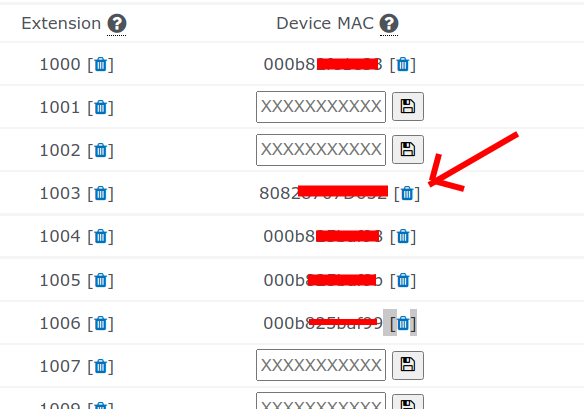
- Your screen should refresh and the Device MAC should no longer appear in the Device MAC column.
- Disconnect power from your phone to complete the de-activation process.
If you are replacing a phone then activate the new phone by following these instructions: How to activate a Helix Telecom provisioned phone.